
Connect a custom domain only after confirming the intended hosted site and that its plan includes custom domains. You need access to the authoritative DNS provider for the hostname.
This guide applies to hosted websites. An existing website companion uses a separate AI-subdomain setup.
1. Decide which hostname to connect#
Use a canonical hostname such as www.example.com or help.example.com. When you enter an apex such as example.com, Answer Cloud canonicalizes it to www.example.com.
Decide whether the apex should forward to that hostname. Keep include_apex: false when the root domain belongs to another website. Optional apex forwarding changes the root-domain route, so do not enable it casually for a subdomain.
2. Add the domain to the hosted site#
In the dashboard, open the selected site's Domains screen to use the add-domain form.

Ask your authenticated agent to inspect the selected organization and site, then call set_custom_domain. For example:
{"organization_id":42,"site_slug":"example-site","domain":"www.example.com","include_apex":true}
Replace the example identity and hostname. Inspect the returned canonical hostname, dns_records, checks, certificate status, and next action. Domain checks run asynchronously.
3. Copy the actual DNS records#
At your DNS provider, add the routing CNAME and certificate validation records returned for this domain. If apex forwarding is enabled, add its returned apex routing records as well.
Open the site's Domains dashboard and copy the domain-specific ownership TXT name and value. The current MCP domain response can report ownership status without including that TXT token in dns_records; do not guess the missing value.
Providers differ on whether a Name field expects a label such as www or a fully qualified hostname. Inspect the final saved record to avoid accidentally producing a name such as www.example.com.example.com.
Remove conflicting records only for the hostname being moved. Preserve mail and unrelated verification records. If a proxy hides the required DNS target, follow your provider's DNS-only configuration for this record while validating it.
4. Refresh and verify#
Call check_domain with the site, domain, and refresh: true. A refresh queues a check; inspect the timestamp and updated result rather than treating the queue acknowledgement as success.
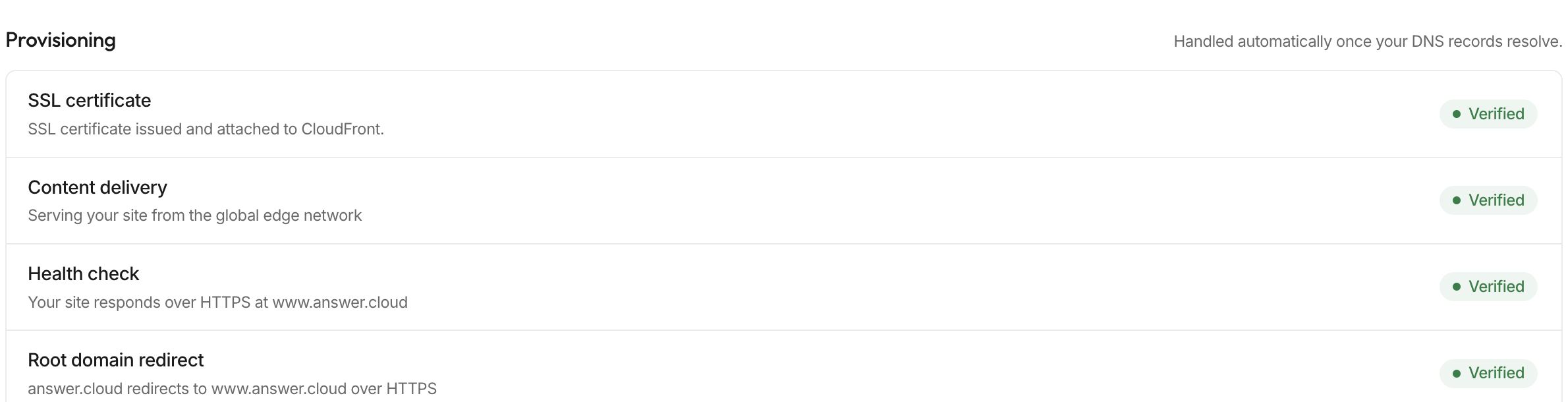
Wait for the routing, ownership, certificate, HTTPS, and public health checks to complete. Open the canonical HTTPS URL and confirm the intended site content. When apex forwarding is enabled, open the bare domain and a known path and verify their redirect destination.
If the domain is still pending, use DNS and certificate troubleshooting. Keep the old hosting arrangement available during a migration until the new public address has passed checks.