
Publishing makes an entry's reviewed draft public. Saving and previewing are separate steps, so you can inspect changes before replacing the published version.
Check the destination and prerequisites#
Open the selected site's CMS, find the collection, and inspect Settings. Collections publish either to Answer Cloud HTML or a connected Webflow CMS.
For Answer Cloud HTML, the site must have a live deploy before its first CMS publication. A never-deployed site returns cms_no_live_deploy. The collection's show and index templates should also be healthy. Missing templates can produce a fallback theme instead of your intended design.
Webflow collections use a separate connection and publication process. Follow the Webflow guide for that destination; an Answer Cloud template does not control a Webflow collection page.
Preview and publish in the dashboard#
- Open the entry and choose Save draft.
- Select Preview to inspect the saved draft.
- Check the title, summary, body, layout, links, images, and intended URL.
- Return to the editor and choose Publish when the content is ready.
- Open the live page directly and visit its collection listing.
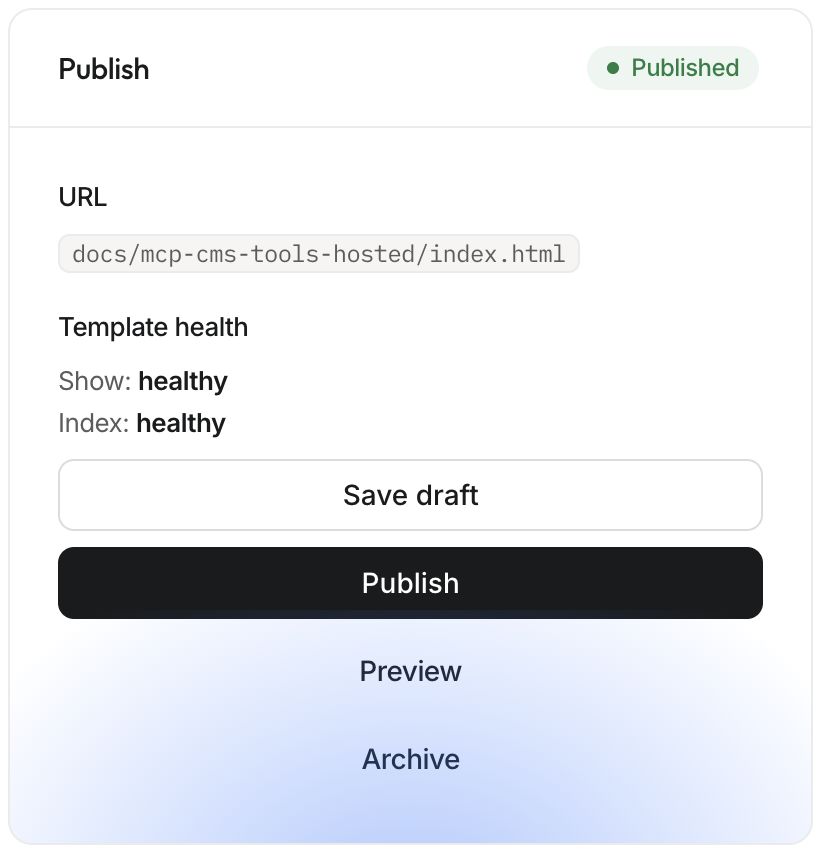
Save before opening Preview so the preview reflects your latest edits. A private preview renders the draft without writing public files, updating discovery, or publishing it into search. It can use the current live site's assets; a preview with an unpublished stylesheet does not prove the final design is available.

Publish with your agent#
Ask the agent to inspect the target collection and entry, save with upsert_cms_entry using save_mode: "draft", then request preview_cms_entry. After review, publish_cms_entry publishes that entry. save_mode: "publish" combines saving and publication, so use it only when publication is intended.
For Answer Cloud HTML, inspect the returned live_url, index_url, and written paths. Publishing updates the page, listing, generated Markdown mirrors, and discovery resources. CMS operations do not consume the daily deployment quota, although normal request limits still apply.
Verify the result#
Open the canonical live URL in a fresh tab. Confirm the corrected fact appears in the main content, not just the editor. Check the listing, navigation, image URLs, and an appropriate site-search or chat question. Retrieval can fail independently of public rendering, so inspect both when the change affects answers.
If publication fails, inspect the entry again before retrying: a staged draft can remain available. Resolve cms_path_collision by removing the conflicting artifact file or choosing the intended CMS path. Avoid changing an established slug just to bypass a template or deployment problem.
See content lifecycle and content troubleshooting.