
Collection templates give CMS-authored pages the same visual system as the rest of your site. Maintain them in your site's Astro source and build them into the deployment package. Do not hand-edit generated public pages to make a lasting layout change.
Required files and markers#
For a collection with key resources, ship these private files at the root of the build artifact:
.aeo/cms/resources/show.html
.aeo/cms/resources/index.html
The show.html layout must contain <!-- aeo:content -->; the index must contain <!-- aeo:entries -->. These are literal HTML comments that the renderer replaces. A missing file or required marker can trigger a fallback theme.
Use the collection key consistently in the manifest, template directory, and MCP configuration. Specifying a template path does not upload a template: the built files must actually be included in a deploy, including the hidden .aeo directory.
Design the complete page#
Build the layouts with shared Astro components, fonts, styles, navigation, and footer. Insert the content marker inside the main article region, with room for headings, long URLs, images, tables, and code. Place the entries marker inside the listing region.
Supported replacement markers include:
| Marker | Content |
|---|---|
<!-- aeo:title --> |
Entry title |
<!-- aeo:summary --> |
Entry summary |
<!-- aeo:published_at --> |
Publication date |
<!-- aeo:collection_name --> |
Collection name |
<!-- aeo:collection_summary --> |
Collection description |
Use the project's CMS generation workflow for title and social metadata. The finished HTML needs a useful document title, description, and public share image. The platform adds canonical/discovery links, structured data, analytics, and its generated embed; do not duplicate that generated layer in templates.
Update templates safely#
- Inspect the collection's current key, URL pattern, destination, and template health.
- Update the Astro sources and build the complete site package.
- Confirm both private templates and their assets are present in the artifact.
- Preview representative short and long entries, the listing, and narrow screens.
- Deploy through the normal deployment workflow when publication is intended.
- Inspect template health again and use
republish_cmsfor the collection when a re-render is needed.
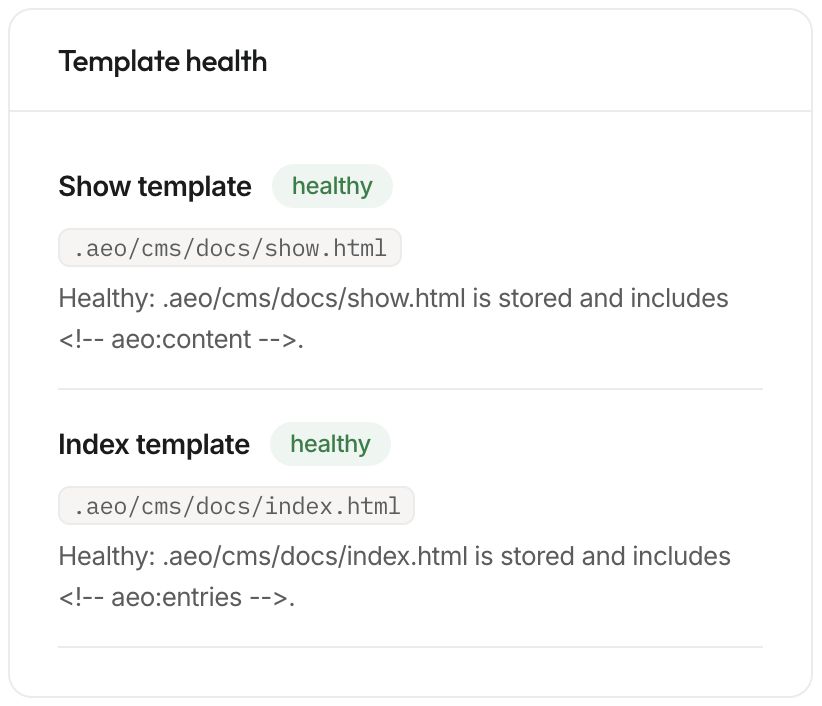
Re-rendering uses published content. It should not be used to publish unrelated staged drafts. Verify an existing entry and listing after the update; a new template file on disk alone does not establish that public pages use it.
For a connected Webflow destination, Answer Cloud HTML templates and collection indexes are skipped. Make the design change in the correct destination instead. See CMS concepts and CMS tool reference.