
Use an entry for one complete page in a collection. Start by selecting the correct site, collection, and existing entry. Updating the same entry preserves its identity; creating a second entry for a correction can leave competing public answers.
Write in the dashboard#
Open the site's CMS, choose the collection's Entries, then open an entry or choose New entry. The collection's field schema determines the form you see.
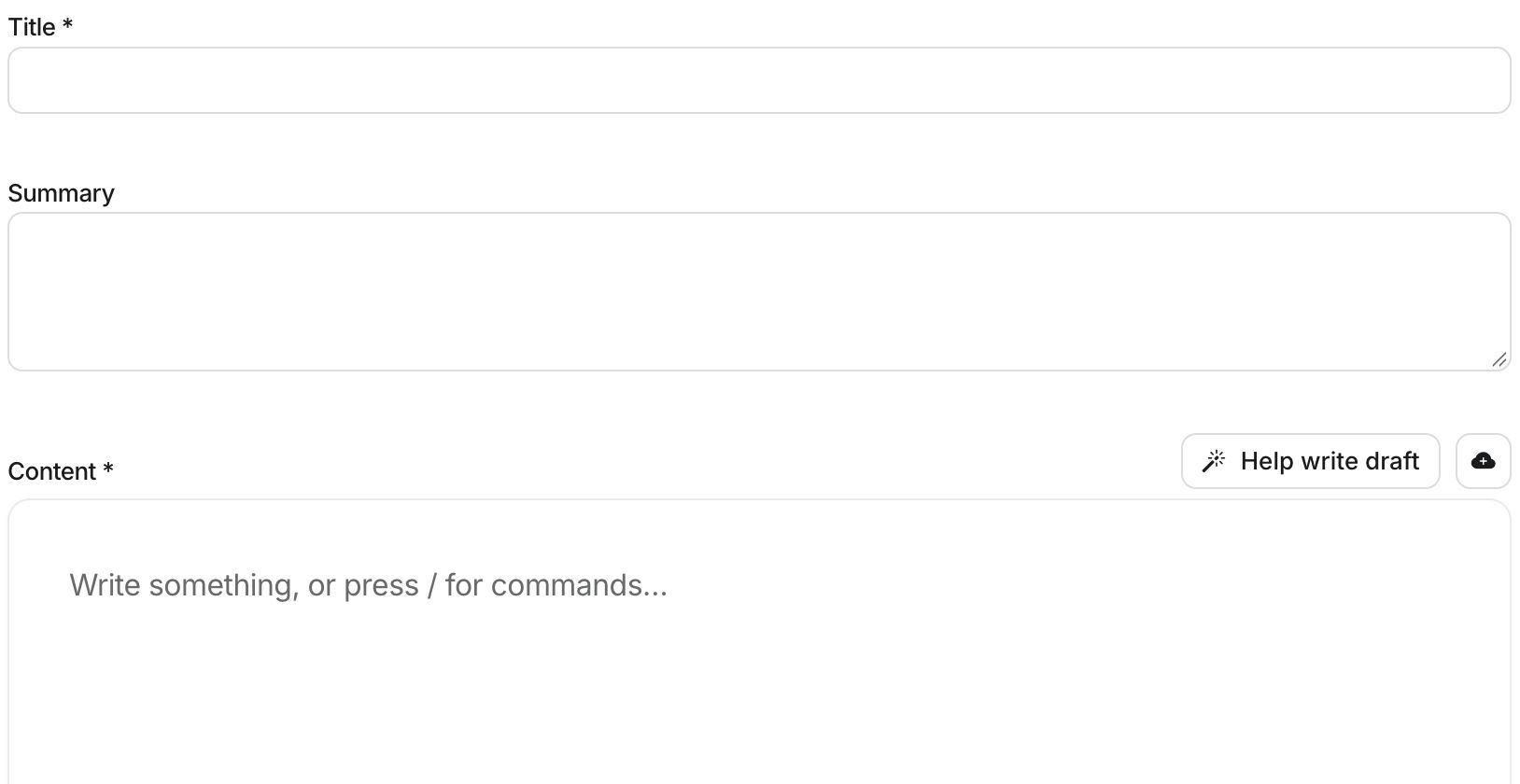
Fill in a specific title, a short summary, and the body. Keep the slug stable for an existing public page. The editor checks slug availability; review any suggested alternative rather than assuming it preserves the old URL.
For formatted content, use headings, paragraphs, lists, links, and code blocks to make the task easy to follow. The editor supports images; image fields also accept a public URL or an upload. Gallery fields accept one image URL per line, while file fields accept file URLs. Confirm images have useful alternative text in the rendered content and that linked downloads are accessible to visitors.
Choose Save draft to stage the work. When updating a published entry, this keeps the existing public version in place. The draft changes indicator means there is newer content waiting to be published.
Work with a connected agent#
A useful request is:
Find the Resources collection on the example site. Update the installation guide using these reviewed facts, preserve its current slug, save a draft, and give me its preview.
The agent can use list_cms_entries and get_cms_entry to find the right record, then upsert_cms_entry with the existing entry_id and save_mode: "draft". Omitting the ID creates a new entry. For collection-specific fields, send values in metadata rather than inventing tool arguments.
Generated writing is a draft to review. Check prices, product behavior, dates, links, and permissions against the actual source before publishing. The dashboard's Help write draft and URL-based generation controls can accelerate authoring when available in the collection; review their result like any other draft.
Review before publishing#
Save, open Preview, and inspect the complete page at desktop and narrow widths. Check that heading levels are useful, code is readable, links reach the intended destination, and images do not overflow. A successful upload alone does not prove an image appears in the final template.
If a save fails, read the validation message and retain your text while correcting the field. If the page is absent publicly, check whether it is still a draft before changing the template or deploying the site again.
Continue with preview and publication, content quality, and collection templates.